User:Addyrielle/Sandbox2
From YPPedia
Jump to navigationJump to search
Nightengaled (Emerald)
Event-Only Preference: I have no preference.
-


Atlantean


https://yppedia.puzzlepirates.com/Injury
Another list of helpful links!
Season's Slimings Competition On Emerald Ocean:
- Pillage, win frays and defeat citadels and graveyards to collect randomly colored globs of goop
- You do get them from CI frays
- You can trade in your goop for holiday-themed goodies at Greenwich Island and Quetzal Island palaces
- The competition ends on Friday, January 3rd
Can trade for:
- Elf Box (contains a randomly-determined sleeping elf or elf furniture in the seasonal colours of the holiday event, and appears in the furniture section of your booty)
- Furniture items in crimson/emerald or navy/gold:
-
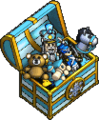 Festive chest
 -
 Holly jolly helm
 -
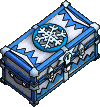 Winter bludgeon trunk
 -
 Winter Swordrack

.png)


- Furniture items in crimson:
-
 Chest o' the Deep
 -
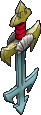 Sword o' the Sea King
 -
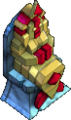 Sea Queen Statue
 -
 Colossal Pearl


General
Game help
- Installation
- Starting out / Official:Intro / Official:Walking
- Earning PoE (needs updating - but would probably be a good one to have updated)
- Missions and the navy
- Pirate etiquette (the bit about forums is outdated but the rest is ok)
- Commands / Official:Communications / Chat / UI (basic chat and UI stuff)
- Puzzles (links to official pages on how to play each one)
- Scoring (general puzzle scoring, experience and duty report info)
- FAQs
- Official Policy
Troubleshooting & common issues
- Fixing corrupted installation:
- Completely uninstall the Puzzle Pirates client by using the Uninstall feature found in the Puzzle Pirates folder in the Start->Programs menu.
- Delete the Puzzle Pirates folder in its entirety.
- Remove all versions of Java from the system - this can be done from the Windows "Add/Remove Software" control panel.
- Install the latest version of Java from http://www.java.com/en/download/index.jsp
- Install Puzzle Pirates from https://download-cdn.puzzlepirates.com/yoclient/puzzlepirates-fullinstall.exe
- Click on the Change ocean button to switch back to your normal ocean(s) from the randomly assigned ocean.
- (Or use the "I have an account" arrow on the top left)
- Cannot log in
- Puzzle Pirates installation guide (Linux Ubuntu) // Puzzle Pirates installation guide (Chromebook)
- How to Update the Target Path (Windows)
- How to merge or unmerge your YPP account with Steam
- Minimap not loading - Petition with the name of the island [1]
- How to provide logfiles / yohoho.log
- Technical Issues/Discussion
Mac specific issues:
- Fixing the macOS client
- Keybinding of password field on mac is wrong
- No way to login to Puzzle Pirates steam account when opening Puzzle Pirates via steam on MacOS
- No sound at all when playing on Mac OS
- Running the game on Macbook Pro M2
Specific puzzle help
Shipboard puzzles
- Battle navigation
- Official seabattles documentation
- Sea battle
- Bnav tutorial
- Whirlpool
- Whirlpool tutorial
- Whirlpool movement
- Global Cadesim (third party tool for practicing bnav)
- Bilge
- Carpentry
- Duty navigation
- Official navigation puzzle documentation
- Navigation
- Duty nav scoring and duty puzzle scoring
- Duty navigation tutorial
- YPP Mantid's interactive map tool (useful for memming)
- Gunnery
- Official gunnery puzzle documentation
- Gunnery
- Boothook's Difficult Cannon Gunning Guide
- Boothook's Navy Gunning Guide
- Gunnery Water Method
- Gunning scoring
- Top gunner (tutorial)
- Patching
- Rigging
- Sailing
- Treasure haul
Crafting puzzles
- Alchemistry
- Blacksmithing
- Official blacksmithing puzzle documentation
- Blacksmithing
- YPP Mantid's blacksmithing planner
- Travidar's Ultimate Blacksmithing
- Distilling
- Foraging
- Shipwrightery
- Official shipwrightery puzzle documentation
- Shipwrightery
- YPP Mantid's shipwrightery planner
- YPP Mantid's shipwrightery score calculator
- Weaving
Carousing
- Drinking
- Official drinking puzzle documentation
- Drinking
- Mug
- Aggressive drinking strategy
- Builder Drinking Strategy
- Denial Drinking Strategy
- Fry Drinking Strategy
- High Drinking Strategy
- Holes in the Table Drinking Strategy
- Infiltrator Drinking Strategy
- Inviso's Drinking Guide
- Short Drinking Strategy
- Stain Drinking Strategy
- Standard Drinking Strategy
- Hearts
- Poker
- Rumbling
- Official rumbling puzzle documentation
- Rumbling
- Boothook's Rumbling Guide
- Boothook's Rumbling Guide 2
- HB's rumble guide
- Rumblevideos explained
- Bludgeon
- Spades
- Swordfighting
- Official swordfighting puzzle documentation
- Swordfighting
- Sword
- YPP Mantid's sword patterns
- Black Death Sword and Sprinkle Placement Guide
- Official:Brawling
- Treasure Drop
Specific activity help
Blockades
- Blockade
- Admiraling a blockade
- Blockade coordination
- Blockade Planning
- Blockade tricks
- Blockade XO guide
- Fandango Blockade Method
- The Incomplete Guide to Blockade Decisions
- Official:Blockade Action
- Official:Blockades
Flotillas
- Official flotilla documentation
- Flotilla
- Official Brigand King documentation (including BK flotillas)
Pillaging & Expos
- Official mercenaries documentation
- Offical vessel hold documentation
- Offical voyages documentation
- Offical voyage types documentation
- Offical vessel booty documentation
- Chart
- Executive Officer tutorial
- Master and Commander (tutorial)
- Pillaging the Monk Way
- Officer Training Script
- Pirate Safari Guide (PVP)
- Official Expeditions documentation (missing lairs?)
- Expedition (has all)
- Official Brigand Kings documentation
- Brigand King
- Imperial outpost
- Merchant brigand
- Viking raid
- Yeti
- Vampirate expedition (lairs)
- Werewolf expedition
Tournaments
Other
Sea Monster Hunts
- Kraken
- Official Kraken documentation
- Kraken Hunt Help discord (has guides from egging and bombing!)
- Keaze's Bombing Guide
Fame & Reputation
- Fame is a measurement of a crew or flag's activity. When a pirate plays a puzzle, the pirate's crew and flag both receive credit towards their fame. If the pirate is jobbing, the pirate's own crew/flag and not the crew/flag they are jobbed into receives the credit for the activity.
- Crew rank can only be affected by the outcome of player versus player sea battles.
- Reputation
- Official documentation for reputation
Shops and stalls, commodities, buying and selling etc.
Shop types?
- Official documentation for intro to shopping
- Ship Buying Guide
- Official:Furniture
- Outfitter (try on outfits before you buy in-game!)
- Puzzle Pirates Marketplace discord server (unofficial marketplace)
- YPP Trinket Collectors discord (useful for buying and selling trinkets)
- Official:Bazaar stall, Shoppe
- Shoppe management, Official:Refinery mgmt
- Official documentation for managing labor / Official:Refinery labor
- Shoppe Keeper (shoppe recipes, input costs and labor management tools)
- BC's shops tutorial
Trophies
Ships
- Ship (links to all the limited editions at the bottom of the page)
- Official:Xebec
(For ship management, see the pillaging chunk of links)
Miscellaneous game stuff
- Chroma / Official:Chroma
- Rogue mark / Official:Rogue Marks & renmaing - Official:Services/Ship renaming rules, Official:Services/Ship renames, Official:Services/How to rename, Official:Rogue Marks
- Official:Pets / Pets and familiars
- Official:Crews / Crew / Flag
- Official:Oceans / Ocean
- Official:Badges
- Official:Colonisation & governance
- Official:Houses
- Chart
- Islands with black markets, Islands with explorers' halls and Islands with trading posts categories might be useful
Portraits & Arty stuff
Account help
- Create a new account
- Unlock inactive account (If you do not have access to the email, or the account was made on steam, please email support@puzzlepirates.com with any information you can provide about the account, username, pirate names, any proof of purchase, etc, and they can help unlock it for you.)
- Account Management page - To update your email address or password, or to retrieve a forgotten password or username (finds usernames associated with your email). (If you no longer have access to the email, you will need to email support)
- Account security - tips on keeping your account safe, and what to do if you get hacked
- Account security recommendations for Steam users
Billing
- For billing support, contact support@puzzlepirates.com
- Pricing, payment and billing info (doesn't include the account limit raising instructions - but does include box edition code redemption)
- Buy doubloons (you can also check your doubloon history there, but there was this link for that as well check doubloon history)
- Buy a subscription
- Official:Subscriptions
- Official:Doubloon Exchange & Official:Doubloons
Bans & suspensions
- Bans - general info on bans and suspensions. (The only way to appeal a ban is if the owner of the banned account requests a review of their case by emailing banpleading@puzzlepirates.com. A petition or complaint will not help in a banning case, nor will getting friends of the player to plead on his or her behalf. It is not appropriate to post in the discord discussing bans.)
How to get support
- Support email: support@puzzlepirates.com (in-game petitions are often faster)
- Support Portal
- Report a problem (complaints, petitions, bug reporting, ask a greeter) / Official:Helpme
You may also be able to get help from other players on the YPP Official discord server, or find what you are looking for here on Yppedia!
YPP official discord
As of December 2023, Puzzle Pirates has a Discord server which replicates many of the old forums (which closed in April 2022).
Yppedia help
Other useful links
- The cyber attack back in 2022
- Dark Seas
- Y!PP Merchandise
- Official:Vocabulary
- Official:Services (has rename, palace prop, island transfer, wager bans, event blockades on ringer island info)
- Official:Black Box
- Official:Gold Box


